

Translate Video to English and Keep Subtitles in Sync
To translate video to English without disrupting its timing, keep the original audio and add translated subtitles unless you have a clear reason to dub the voices…
Most people who search for a way to translate a video to English want the same thing: a viewer who does not speak the original language should be able to press play and understand. Klipa's translator listens to the speech in your video, translates it into English, and speaks it back with a synthetic voice that you choose and can preview first. An English subtitle file made from the same translation comes with it.
One run produces two things: the video with an English voice replacing the original speech, and a subtitle file in English that uses the same timestamps as the new voice. English-speaking audiences watch in very different ways. Some press play with the sound on, others scroll a feed with the sound off, and a few platforms handle imported subtitles badly. With both files in hand you can publish the dub, the subtitles, or the two together. If you want the original speaker to stay faintly audible, one option keeps the first audio playing quietly behind the English voice.
The English voice is synthetic, chosen from seven named voices: three female, three male and one neutral. You pick a gender, pick a voice and press Listen to hear a short sample in English before the full translation starts. There is nothing to clear with anyone. The speaker's face is left alone as well: only the audio changes.
You can leave the source language on automatic detection or set it yourself. The tool works on an uploaded file: save the video first, then upload it in MP4, MOV, AVI, MKV or WebM.
Creators whose channel started in another language, teams that want one product video understood in an English-speaking market, teachers sharing a course beyond their own country, and families sending a filmed message to relatives who live in English. Each of them skips the studio, the voice actor and the manual subtitle export.

Upload an MP4, MOV, AVI, MKV or WebM file. Leave the source language on Auto-detect, or choose it yourself if you already know which language is spoken in the video.
English is the target language here. Choose male, female or neutral, select one of the voices, press Listen for a short English sample, and decide whether to keep the original voice underneath.
Collect the video with its English voice, plus the English subtitle file that shares its timestamps. Publish the dub, the subtitles, or both, depending on where the video will be seen.
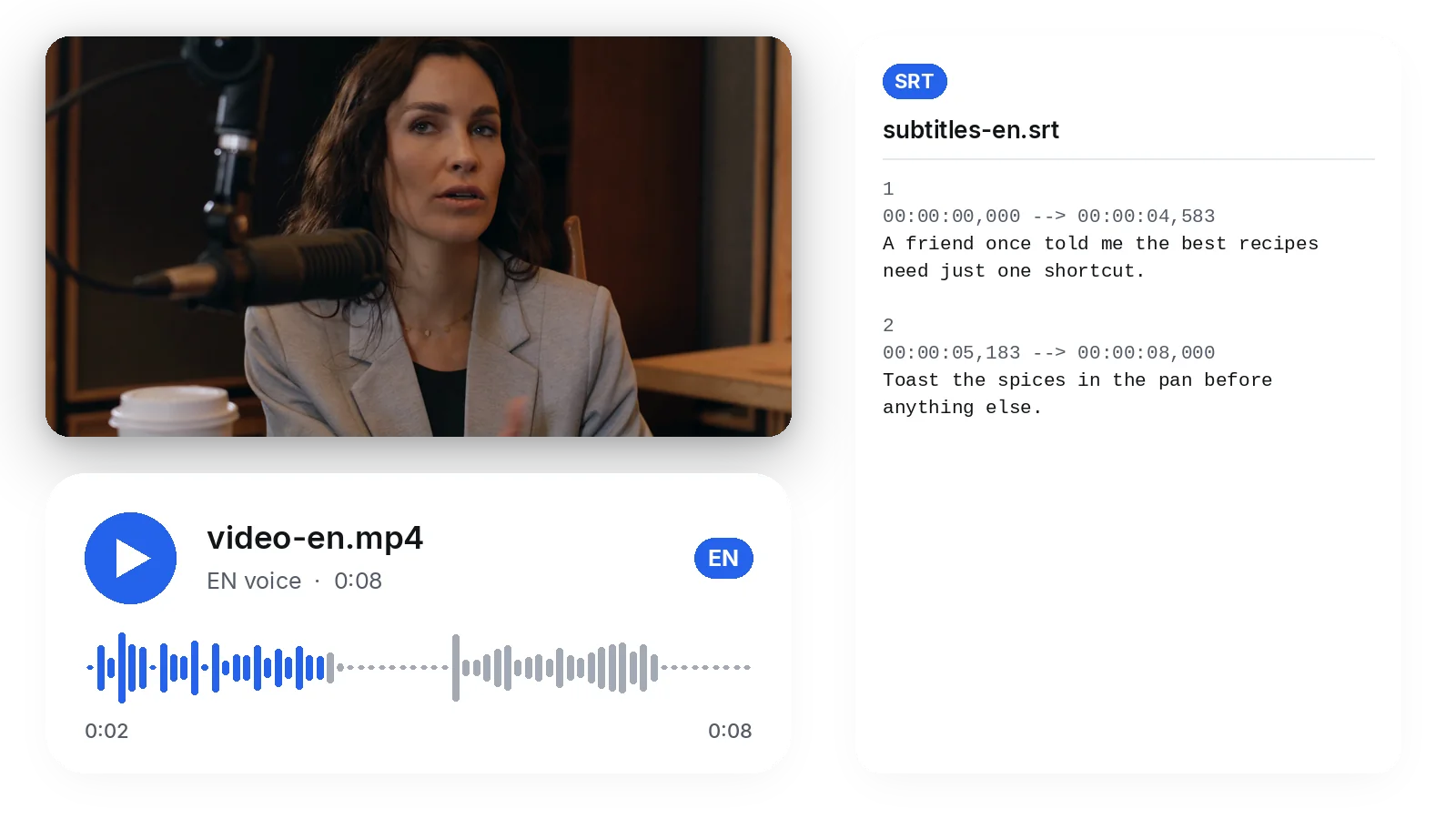
Upload once and receive the English dub and an English subtitle file together. Transcription, translation and voice follow one another automatically, so you never export a transcript, paste it into a translator and then hunt for a voice. Both outputs share the same timing, which keeps them consistent when you publish them side by side.
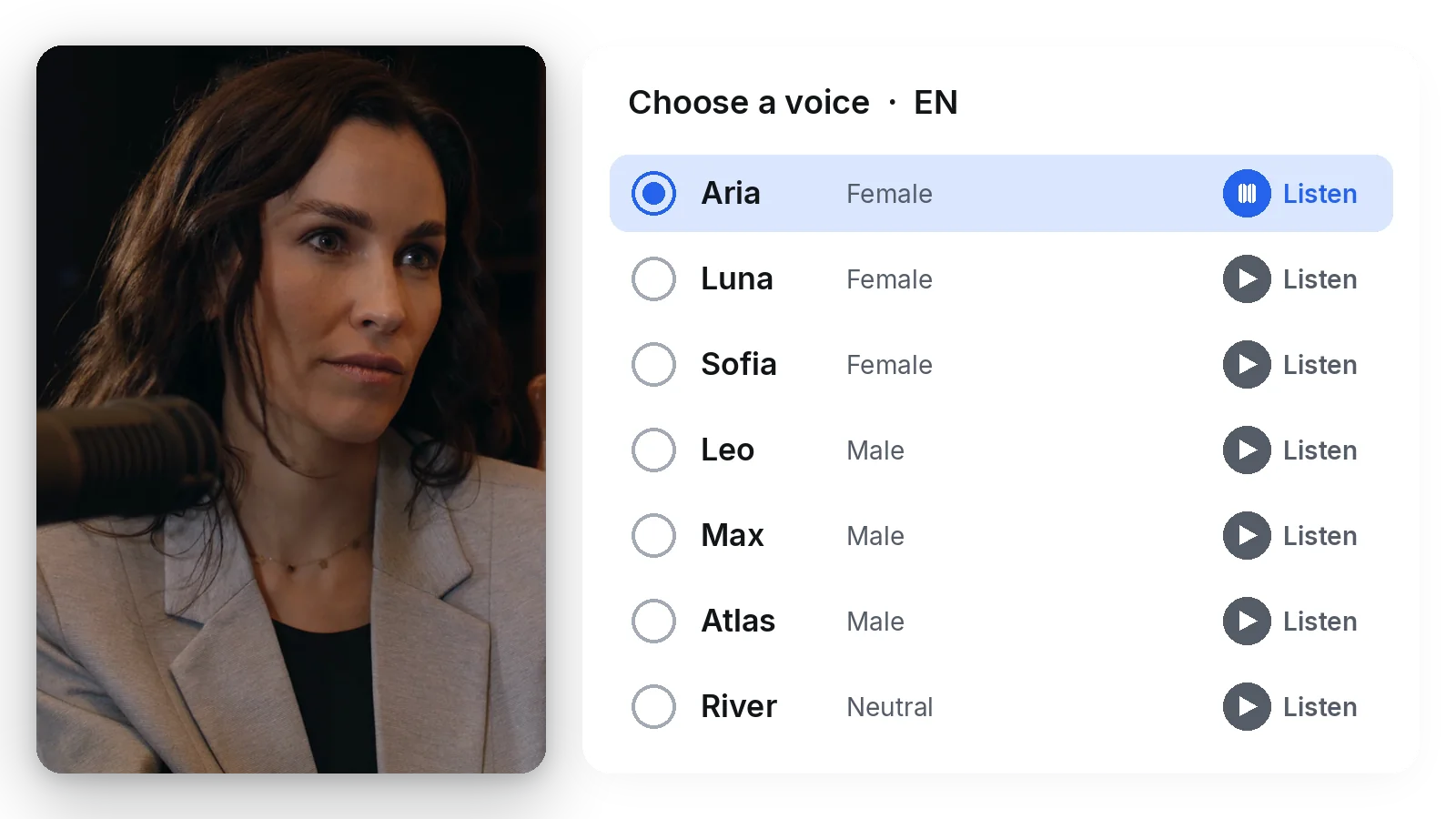
Seven synthetic voices speak English, three female, three male and one neutral, with tones that range from measured to energetic. Press Listen to play a sample, compare, and only then start the full translation. It is a catalogue voice, so no consent question comes with it.
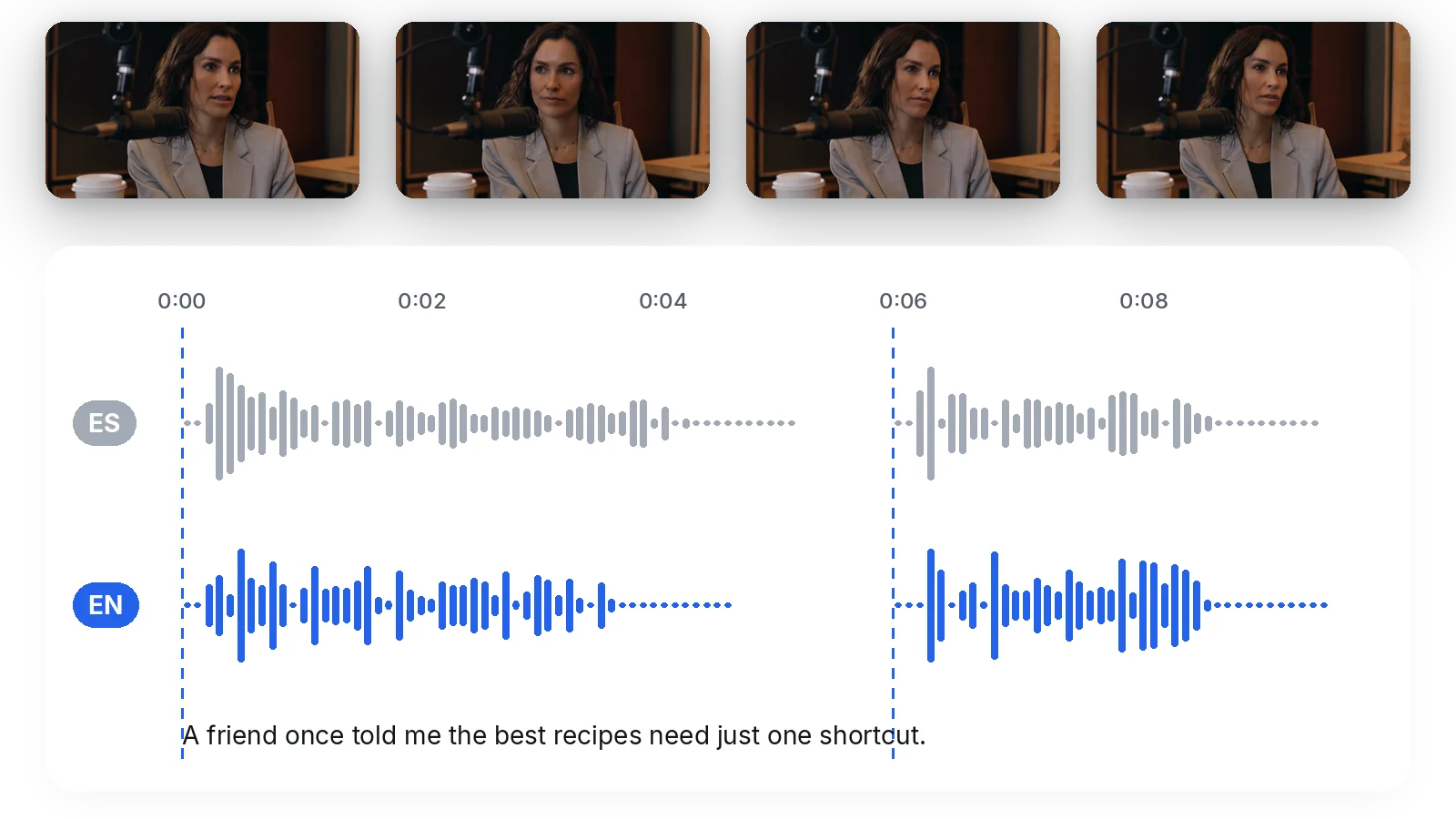
Each English line is placed where the original line began. When English runs longer than the source, the voice speeds up slightly within a measured limit instead of being cut off, and the final line is never trimmed: a few frozen frames extend the video so it can finish. The picture itself is left as it was.
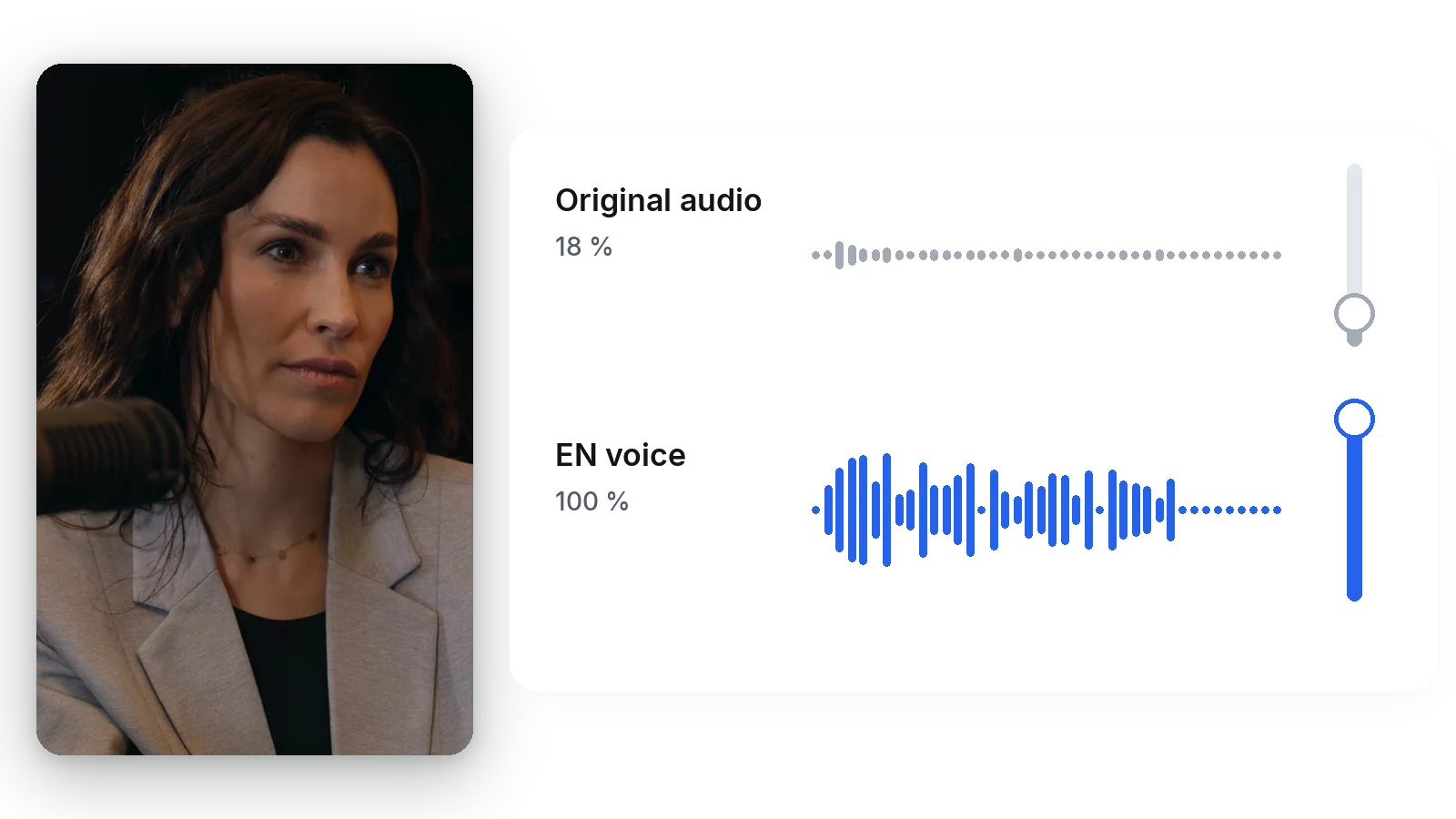
If your video has music, ambience or a speaker whose tone you would like to preserve, switch on the option that keeps the original voice at low volume behind the English one. Leave it off for a clean English-only track. Either way, you choose the source language yourself or let it be detected.
A tutorial, vlog or explainer recorded in your own language becomes watchable by the largest online audience, with a spoken English version instead of subtitles that many people skip on a phone. The original upload stays as it is, ready to publish next to the English one.
One demo or advert recorded at home turns into an English version for the United States, the United Kingdom or India, with no reshoot and no recording session. The message, the pacing and the cuts stay identical; only the voice and the subtitle file change.
Students who follow in English can listen to a lesson timed to the slides and gestures on screen, rather than reading a subtitle line while the demonstration happens. A trainer can add an English edition of a course without rebuilding it.
A video received in a language you do not speak, saved to your device, can be turned into English audio and a subtitle file you can read along with. Use it only for videos you have the right to use, such as your own or those shared with you.
A wedding speech, a family message or a filmed memory recorded in one language becomes something that English-speaking relatives can hear and read. It is a one-off job that does not justify a professional translation service.
A free trial translates 15 seconds of your video, where the most is said, so you hear the voice before committing. The whole video is translated with the minutes of Pro (10 min per month) or Studio (30 min per month), or with a one-time payment based on its length.
This tool does the whole job on a video file you upload: it transcribes the speech, translates it, voices the English and writes the subtitle file, all in one run. There is no text to copy out of the video and paste somewhere else, and no separate voice tool to find afterwards.
Upload the video, leave the source language on automatic detection, make sure English is the target, then choose a gender and a voice and listen to the sample. Start the translation and download the dubbed video when it is ready, with the English subtitle file next to it.
Yes, that is the normal use. Leave the source language on Auto-detect or set it yourself in the settings, keep English as the target, and run the translation. The English is a translation of what is said in the video, so it follows the content of the original speech.
Yes. The subtitle file in English is produced with the dub and uses the same timestamps, so you can publish it alone, keep the original audio on the video, and let viewers read along. Or publish the English voice and the subtitles together, whichever suits the platform.
The translator takes an uploaded file. Save the video you have the right to use, upload it here in MP4, MOV, AVI, MKV or WebM, and run the English translation. Do not translate someone else's content without permission to reuse it.
Yes, if you tick the option to keep the original voice underneath. The first audio then plays at low volume behind the English one, which suits videos with music or ambience. Leave the option off and the video carries the English voice alone.
The maximum length depends on your plan, and it is checked whichever way the video reaches the tool. Translation minutes are counted on the length of the source video, so a longer video uses more of them. Cut a long video into parts if you only need one extract.

To translate video to English without disrupting its timing, keep the original audio and add translated subtitles unless you have a clear reason to dub the voices…

Imagine opening a clip recorded in Portuguese, watching it with clean English subtitles, and uploading the same video to TikTok without a single ‘file too large’…

You just uploaded your latest masterpiece to YouTube. A few days later, a comment pops up in Spanish, thanking you for the video. The weird part? You don’t speak…
English dubbing, English subtitles and a voice you picked yourself.
No credit card required
A video recorded in another language no longer has to stay out of reach of English-speaking viewers. Run the translation here, listen to the voice first, then publish the dub, the subtitles or both. Already own a subtitle file and have no need for a new voice? Translate it with the subtitle translator. Want the same video understood by Spanish speakers as well? The Spanish version of this tool works the same way, with a Spanish voice and Spanish subtitles instead.
